Code
install.packages(c("ivdtools", "rmarkdown", "knitr"))This chapter explains how to set up an ivdtools analysis environment, create a qmd project, import and verify data, run progressive analyses, and save reproducible results.
ivdtools requires R >= 4.1.0. We recommend using a newer R version that is still supported and keeping the major versions of R and all dependencies consistent across everyone working on a project.
Download the installer for your operating system from CRAN: https://cran.r-project.org/.
The system repository can install the base R environment:
sudo apt update
sudo apt install r-base r-base-devsudo dnf install R R-develR versions in Linux distribution repositories may be old. If a project needs a newer R version, configure the repository by following the instructions for the relevant distribution on CRAN.
We recommend using .qmd or .Rmd files to record code, text, tables, and figures.
| Software | Windows | Linux | macOS | Typical use |
|---|---|---|---|---|
| RStudio | ✓ | ✓ | ✓ | Ready to use; suitable for beginners and routine analyses |
| Positron | ✓ | ✓ | ✓ | Suitable for users who want the next-generation Posit IDE |
| Visual Studio Code | ✓ | ✓ | ✓ | Requires configuration of R, Quarto, and related extensions |
| Jupyter | ✓ | ✓ | ✓ | Requires Python, Jupyter, and an R kernel |
| PyCharm | ✓ | ✓ | ✓ | Requires suitable R support and additional configuration |
| cantor | ✓ | In development; only recently relatively stable |
RStudio and Positron are available from https://posit.co/downloads/; Visual Studio Code is available from https://code.visualstudio.com/Download.
When ivdtools has been published to the CRAN mirror you use:
install.packages(c("ivdtools", "rmarkdown", "knitr"))Install optional packages for data import as needed:
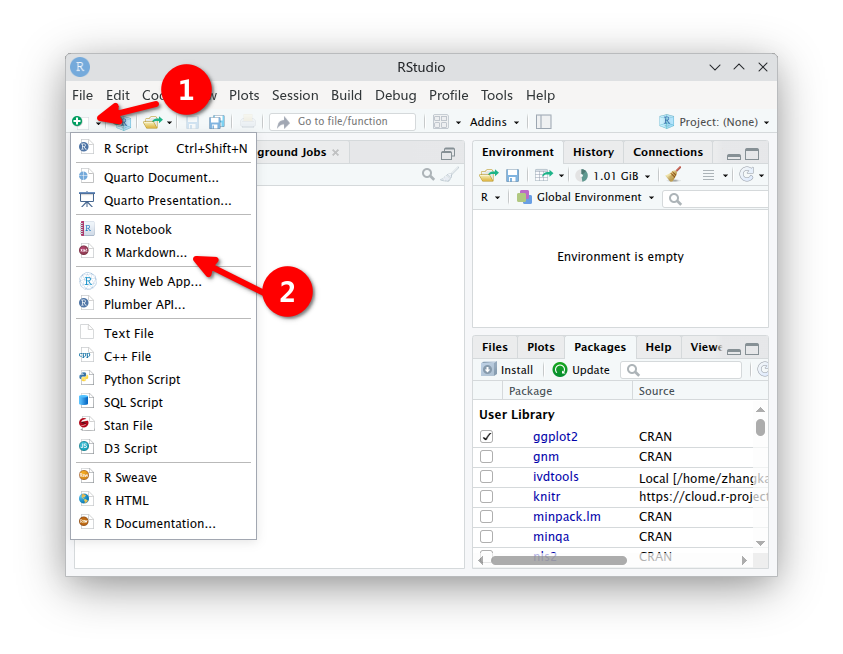
install.packages(c("readr", "readxl"))In RStudio, choose File > New File > R Markdown.
Minimal document template:
---
title: "IVD Analysis Report"
author: "Analyst"
date: "Enter report date"
output:
  html_document:
    toc: true
    number_sections: true
---Base R:
dat <- read.csv(
  "data-raw/method-comparison.csv",
  stringsAsFactors = FALSE,
  check.names = FALSE
)
Using readr:
dat <- readr::read_csv(
  "data-raw/method-comparison.csv",
  show_col_types = FALSE
)dat <- readxl::read_excel(
"data-raw/method-comparison.xlsx",
sheet = "data"
)If an Excel file contains formulas, merged cells, or manual formatting, first confirm that the imported values, column names, and data types agree with the original table.
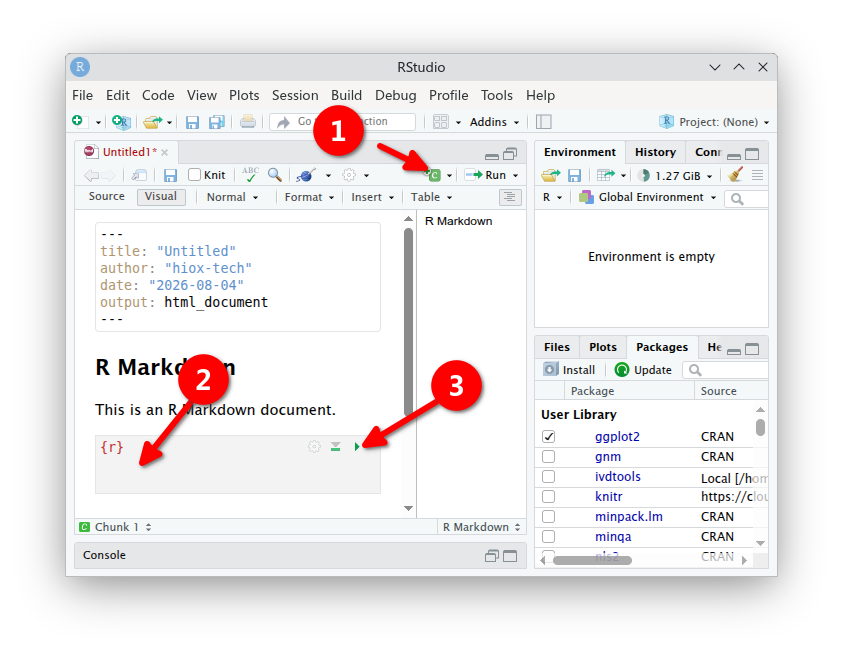
Insert an R code block in an .Rmd file and use the button in the upper-right corner of the block to run it, or run all code from top to bottom.
For reproducibility, the final report should be rendered from start to finish in a fresh R session rather than relying only on objects already present in the Console.
After reading the result fields described in the relevant help page, write a table to disk as CSV:
# Example: confirm the actual field in the relevant object help page
result_table <- mc$regression
saveRDS(result_table, "tables/regression-result.rds")
Prefer saving complex objects as RDS to preserve their classes and attributes. When exchanging results with other software, first organize the object as a flat data frame and then export it as CSV.
All figures are drawn with ggplot.
p <- plot(mc, type = "bland_altman")
ggplot2::ggsave(
  "figures/bland-altman.png",
  plot = p,
  width = 7,
  height = 5,
  dpi = 300
)In RStudio, click Knit, or run:
rmarkdown::render(
  "report/analysis.Rmd",
  output_format = "html_document",
  clean = TRUE
)
Record environment information after completing the analysis:
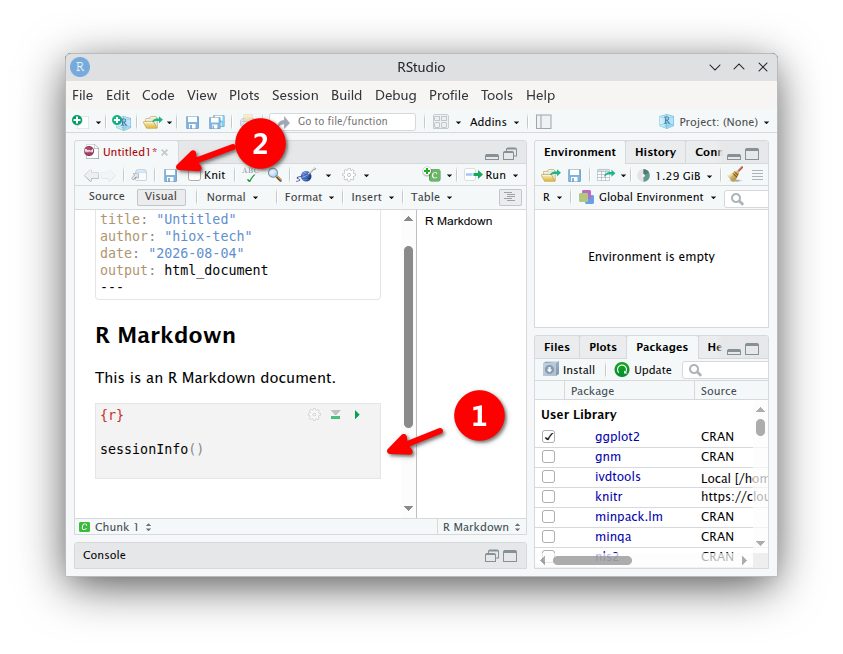
sessionInfo()